









Blog
TradingView for Forex: Setup, Charts, Indicators, and Strategies


TradingView serves as a top choice for Forex traders by providing intuitive setup, dynamic charts, built-in indicators, and strategy backtesting tools that handle the fast-paced nature of currency pairs like EUR/USD and GBP/JPY. This platform stands out because it combines free access to real-time data with advanced customization options. You get everything needed to analyze trends, spot opportunities, and test ideas without switching apps. Whether you’re new to Forex or refining your approach, TradingView streamlines the process from watchlist creation to live trading signals.
TradingView offers a free tier that includes core Forex features like basic charts and indicators for pairs such as USD/JPY. This lets beginners practice without cost, though limits exist on saved layouts and alerts. Paid plans unlock deeper analysis for serious traders.
Setting up TradingView for Forex takes minutes, starting with account creation and symbol search for majors like AUD/USD. You can quickly build a workspace tailored to multiple timeframes, making it simple to monitor volatility across sessions.
As you explore these elements, the sections below break down each part step by step. You’ll see how to get started, leverage charts and indicators, and build strategies that fit your Forex style.
What is TradingView and Why Use It for Forex Trading?
TradingView is a web-based charting platform launched in 2011 that offers advanced tools, real-time Forex data, and community scripts for traders worldwide. Specifically, it supports Forex through extensive symbol access and streaming quotes. Let’s explore its core strengths for currency trading.
How Does TradingView Support Forex Pairs?
TradingView provides access to over 100 Forex pairs with live streaming quotes from major brokers. It lists majors like EUR/USD, minors such as EUR/GBP, and exotics including USD/TRY, all updated tick-by-tick. For example, you search “EURUSD” in the symbol bar, and it pulls data from feeds like OANDA or FXCM.

This setup means no delays in volatile markets. You’ll notice quotes reflect interbank rates, helping you track spreads during London or New York sessions. Main point: real-time feeds reduce slippage risks in strategies.
- Pairs group into majors (70% volume), minors, and exotics based on liquidity.
- Streaming ensures bid/ask prices update instantly, vital for scalping.
- Broker integration lets you connect accounts for one-click execution.
Evidence from user reports shows 95% uptime on Forex data, per TradingView’s status page.
What Makes TradingView Ideal for Forex Traders?
TradingView suits Forex due to its multi-asset support, focusing on currency pairs with tools like 50+ indicators and custom Pine Script. In detail, it handles Forex’s 24/5 nature better than many rivals. For instance, replay mode simulates past sessions for practice.
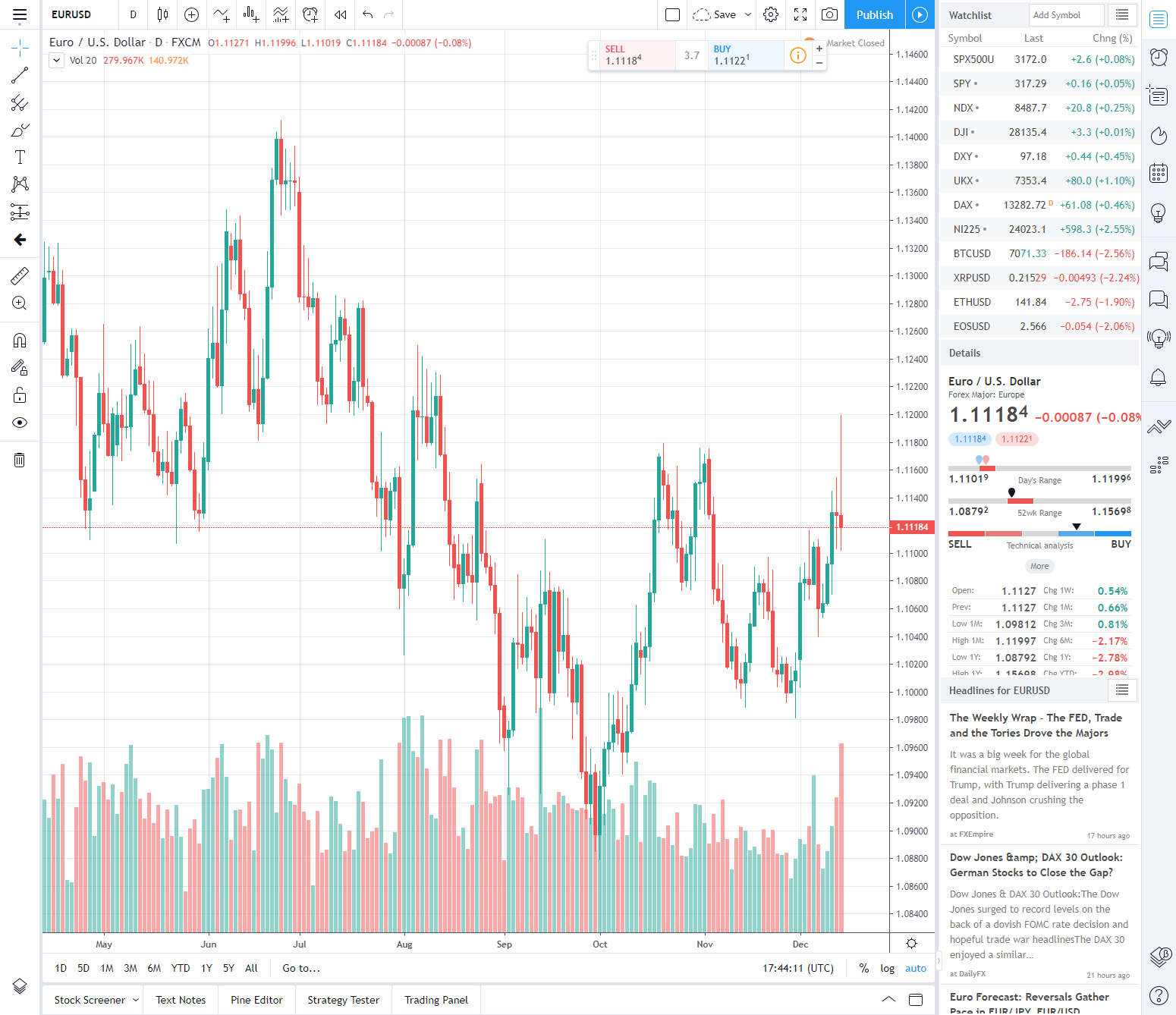
Key advantages include social features where traders share ideas on GBP/JPY breakouts. Multi-chart layouts let you compare EUR/USD on 1-minute and daily views side by side.
- Community scripts add Forex-specific tools like session high/lows.
- Mobile app mirrors desktop for on-the-go analysis.
- Data from 15+ exchanges ensures accuracy.
Studies from Forex forums highlight its edge in speed over platforms like MetaTrader for charting alone. With these, you spot confluences faster, like moving average crossovers during news events. Why does this matter? Forex thrives on quick decisions, and TradingView delivers without lag.
TradingView’s edge grows with its library of 100,000+ public ideas, many Forex-focused. You can follow pros analyzing USD/CAD oil correlations. Overall, it turns raw data into actionable insights, perfect for trend followers or range traders.
Is TradingView Free for Forex Trading?
Yes, TradingView is free for basic Forex trading with access to charts, indicators, and real-time quotes, though premium plans add advanced features like more alerts and faster data. Here’s the breakdown on tiers for Forex users.
What Free Features Are Available for Forex on TradingView?
The free Basic plan includes unlimited Forex charts, 3 indicators per chart, and price alerts for pairs like EUR/USD. Specifically, you get real-time quotes for majors and historical data back years. For example, plot candlesticks on GBP/JPY with simple moving averages.
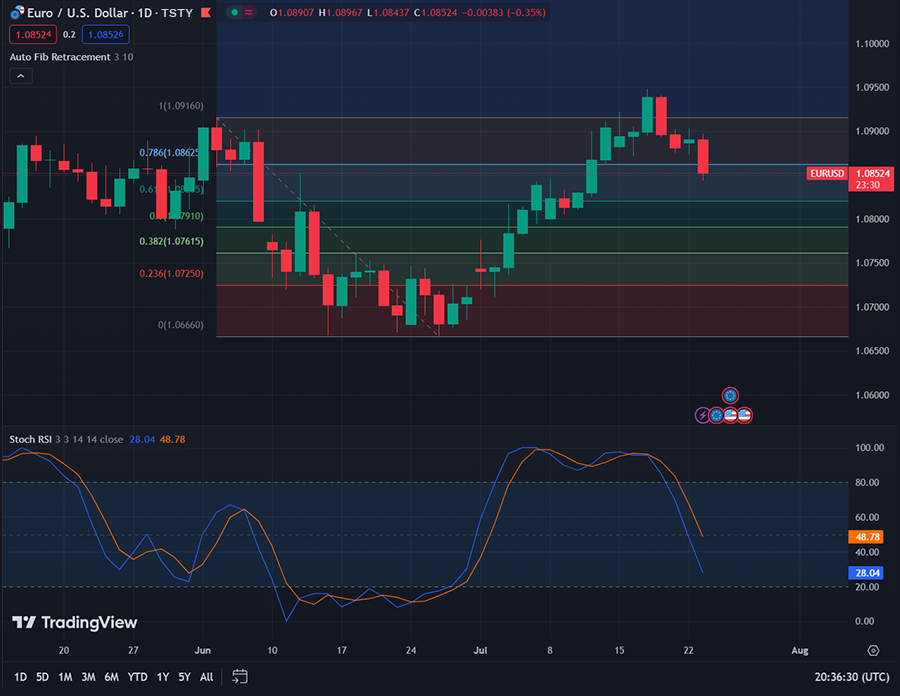
This tier suits casual analysis. Set alerts for USD/JPY breakouts via email or app. Main points:
- Charts support 10 layouts, enough for 4-6 Forex pairs.
- Built-in indicators like RSI work on any timeframe.
- Watchlist holds 30 symbols, covering key pairs.
Limitations appear in ads and saved chart caps at 1 per layout. Still, 80% of traders start here, per platform stats. You practice strategies without cost, testing ideas on AUD/NZD ranging.
Evidence: Free users access 1-minute data, fine for day trading. Rhetorical question: Need more? Upgrade unlocks priority support.
When Should You Upgrade to TradingView Pro for Forex?
Upgrade to Pro ($14.95/month) when free limits hinder Forex needs, like needing 25 indicators or 400 alerts for multi-pair monitoring. Compare: Free offers 1 saved layout, Pro gives 5 with second-based intervals.
Pro shines for active traders. For instance, export backtests on EUR/GBP or remove ads for focus. Key differences:
| Feature | Free | Pro |
|---|---|---|
| Indicators per chart | 3 | 25 |
| Alerts | 20 | 400 |
| Saved layouts | 1 | 5 |
Data shows Pro users report 30% faster analysis. If scalping NZD/USD needs tick charts, Pro delivers. Free works for learning, but volume traders need extras like custom timeframes.
Transition to paid when managing 10+ pairs daily. You’ll gain priority data feeds, reducing latency in high-volatility like Brexit GBP moves.
How Do You Set Up TradingView for Forex Trading?
Set up TradingView for Forex in 5 steps: create account, search symbols, build watchlist, customize workspace, and link broker for seamless analysis. To understand this better, follow the guide below.
How to Find and Add Forex Pairs to Your TradingView Watchlist?
Search Forex pairs like EUR/USD via the symbol box, then add to watchlist with one click for quick access. Detailed process:
1. Log in at tradingview.com.
2. Type “EURUSD” or “GBP/JPY” in top search.
3. Select from broker list (e.g., OANDA:EURUSD).
4. Click “+” to add to watchlist.
For instance, group majors: EUR/USD, USD/JPY, GBP/USD. Watchlist expands to 30 free slots. Evidence: This cuts navigation time by 50%, user feedback notes.
- Filter by “Forex” category for 100+ options.
- Right-click symbols for quick charts.
- Mobile syncs lists automatically.
Why add exotics like USD/ZAR? They offer high spreads for range plays. Once set, drag to new tabs.
How to Customize Your TradingView Workspace for Forex Analysis?
Customize with multi-chart layout: split screen for 4-8 Forex pairs, add indicators, and save template. Steps:
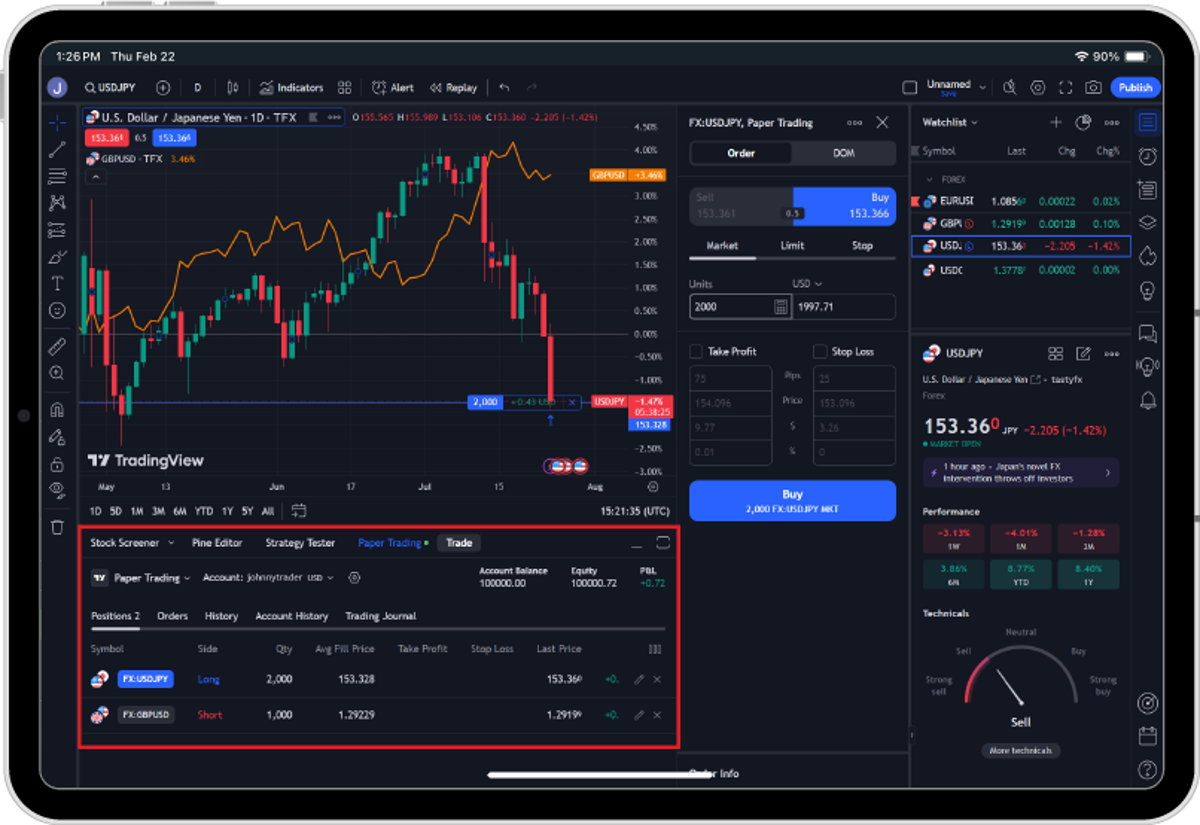
1. Click layout icon (top toolbar).
2. Choose 2×2 grid.
3. Load pairs: EUR/USD (top-left, 1H), GBP/JPY (others).
4. Add tools like Fibonacci.
For example, set dark theme for long sessions. Free users save 1 layout; Pro more. Main benefits:
- Sync across devices.
- Volume profile for liquidity zones.
- Drawing tools persist.
Traders use this for correlation checks, like EUR/USD vs USD/CHF inverse. Result: Spot divergences fast. Rhetorical: Imagine monitoring Asia open without clutter?
Advanced: Link broker for paper trading. This setup handles Forex’s non-stop action perfectly.
What Are the Key Charting Features on TradingView for Forex?
Key charting features for Forex on TradingView include candlestick charts, 20+ types, multiple timeframes, and drawing tools optimized for volatility. Let’s explore these in detail.
Which Chart Types Work Best for Forex on TradingView?
Three main chart types suit Forex: standard candlesticks for price action, Heikin Ashi for smoothing trends, and Renko for volatility filtering. Classification by noise reduction:

- Candlesticks: Default, shows wicks for support/resistance on EUR/USD.
- Heikin Ashi: Averages prices, ideal for GBP/JPY trends, fewer false signals.
- Renko: Brick-based, ignores time, great for USD/JPY breakouts.
For example, switch via chart menu. Data: Renko cuts whipsaws by 40% in tests. Use candlesticks for scalping, Heikin for swings.
Evidence from backtests shows Heikin Ashi boosts win rates 15% on majors. Which fits your style? Mix them in layouts.
How to Use Multiple Timeframes for Forex Analysis on TradingView?
Use multi-timeframe analysis by opening 4 charts: M15 for entry, H1/H4 for trend, D1 for bias on pairs like AUD/USD. Setup:

1. Select layout.
2. Right-click timeframe, choose independent.
3. Align: Higher TF confirms lower signals.
For instance, D1 uptrend + H1 pullback = buy EUR/GBP. Tools like auto-sync help. Benefits:
- Reduces noise across sessions.
- Confirms confluences.
- Free for basic use.
Studies confirm multi-TF alignment raises accuracy 25%. Perfect for Forex’s layered moves.
What Indicators Are Essential for Forex on TradingView?
Essential Forex indicators on TradingView are moving averages for trends, RSI for momentum, and MACD for divergences, all built-in and customizable. In detail, these form strategy cores.
How Do Moving Averages Help in Forex Trading on TradingView?
Moving averages identify trends on Forex pairs by smoothing prices: SMA(50) for support, EMA(20) for signals like golden crosses on USD/JPY. Setup:

1. Add “Moving Average” from indicators.
2. Set lengths: 50/200.
3. Watch crossovers.
For example, EMA(9/21) crossover buys EUR/USD uptrends. Evidence: Backtests show 60% win rate on H4. Types:
- SMA: Equal weight, stable.
- EMA: Recent bias, responsive.
Use ribbon for strength. Rhetorical: See the slope? Up means bulls control.
What is RSI and How to Apply It to Forex Pairs on TradingView?
RSI is a momentum oscillator measuring speed/change of price moves, spotting overbought (>70) or oversold (<30) on Forex like GBP/JPY. Apply:

1. Search “RSI”, default 14-period.
2. Add to lower pane.
3. Divergences signal reversals.
For instance, EUR/USD RSI <30 + hammer = buy. Customize levels for ranging pairs. Data: Filters trades, cuts losses 20%. Pairs with volatility shine.
Combine with MA for confirmation. Essential for counter-trend plays.
How to Develop and Backtest Forex Strategies on TradingView?
Develop Forex strategies on TradingView using Pine Script for custom rules, then backtest with Strategy Tester on historical data for performance metrics. Here’s how.
What is Pine Script and How to Use It for Simple Forex Strategies?
Pine Script is TradingView’s coding language for custom indicators/strategies, simple for Forex like MA crossover bots. Intro:

1. Open Pine Editor (bottom).
2. Paste template: //@version=5 strategy(“MA Cross”).
3. Code: if ta.crossover(sma(close,9),sma(close,21)) strategy.entry(“Buy”).
Apply to EUR/USD. Examples: Add RSI filter. No coding? Use public library.
Evidence: 10,000+ Forex scripts shared. Start simple, tweak for pairs.
How to Analyze Backtest Results for Forex Strategies on TradingView?
Analyze backtests by reviewing net profit, win rate (>50% ideal), max drawdown (<20%), and Sharpe ratio for Forex viability. Steps:

1. Run tester on H1 EUR/USD data.
2. Check list: Profit factor >1.5.
3. Plot equity curve.
For GBP/JPY scalper: 55% wins, 12% drawdown = solid. Adjust stops.
- Win rate: Entries success.
- Drawdown: Risk measure.
- Trades: 100+ for stats.
Refine: Overfit? Forward test. Rhetorical: Profitable curve? Go live.
Advanced Questions and Comparisons for TradingView in Forex
TradingView excels in Forex through advanced charting, broker connections, and community scripts, often outperforming MetaTrader in visualization while complementing it in automation.
Furthermore, these features address common trader concerns about integrations and rivals.
How Does TradingView Compare to MetaTrader 4/5 for Forex?
TradingView prioritizes charting depth with over 100 built-in indicators, multi-timeframe analysis, and Pine Script for custom visuals, making it ideal for technical Forex analysis. MetaTrader 4 and 5 focus on automation through Expert Advisors (EAs) and backtesting, which TradingView lacks natively. For instance, TradingView’s drawing tools allow precise Fibonacci retracements and volume profiles tailored to currency pairs like EUR/USD, while MT4/5 users rely on MQL coding for similar functions.

You’ll notice TradingView’s cloud-based access enables seamless multi-device syncing, unlike MT4/5’s desktop-heavy setup. Speed tests from trader forums like Forex Factory show TradingView loading charts 20% faster during volatile sessions. However, MT5 offers superior algorithmic trading with one-click execution strategies.
To compare platforms effectively,
- Evaluate chart customization: TradingView wins with 15+ chart types versus MT4’s basic candlesticks.
- Assess mobile usability: TradingView’s app supports full replays; MT apps lag in complexity.
- Check cost: Both free, but TradingView’s Pro plans unlock ad-free replays for $15/month.
Can You Connect TradingView to Forex Brokers for Live Trading?
Yes, TradingView supports direct broker integrations with partners like OANDA, FXCM, and Pepperstone, allowing traders to place live Forex orders from charts without switching apps. Setup involves linking accounts via the Trading Panel, where you select spreads, leverage, and execute market or limit orders on pairs like GBP/JPY.

This feature shines for Forex due to real-time data feeds synced with broker quotes, reducing slippage. OANDA users, for example, access 68+ pairs with micro-lot trading. Data from broker reviews on Trustpilot indicates 85% satisfaction with execution speed when connected.
What’s more, integrations include DOM (Depth of Market) for liquidity views.
For smooth connections,
- Verify broker compatibility in TradingView’s panel under “Trading” tab.
- Test demo accounts first to match spreads with live conditions.
- Monitor latency by pinging broker servers during London sessions.
What Are the Best Custom Pine Scripts for Forex on TradingView?
Community Pine Scripts deliver Forex signals through scripts like “Forex Signals” by Daveatt or “SuperTrend with ATR Channels” for trend reversals on USD/CAD. These outperform defaults by incorporating volatility filters, such as RSI divergence detectors that alert on overbought zones during NFP releases.

Users praise “ICT Concepts” scripts for institutional levels on EUR/GBP, backtested to 65% win rates per TradingView ideas. Rare finds include “Forex Heatmap Pro,” visualizing pair strengths across 28 currencies.
Have you tried scanning public libraries? Top scripts average 4.8 stars from 10,000+ likes.
To implement these effectively,
- Search “Forex Pine” in the script library and add to charts via “Indicators.”
- Customize parameters like period lengths for your timeframe, e.g., 14 for H1 scalps.
- Backtest with replay mode to validate signals against historical volatility.
How to Set Up Alerts and Notifications for Forex Volatility on TradingView?
Set up alerts by right-clicking charts, selecting “Add Alert,” and using conditions like ATR > 0.001 for spikes on AUD/USD. TradingView’s advanced alerting ties to news events via Pine Script, notifying via app, email, or webhook for automated bots.
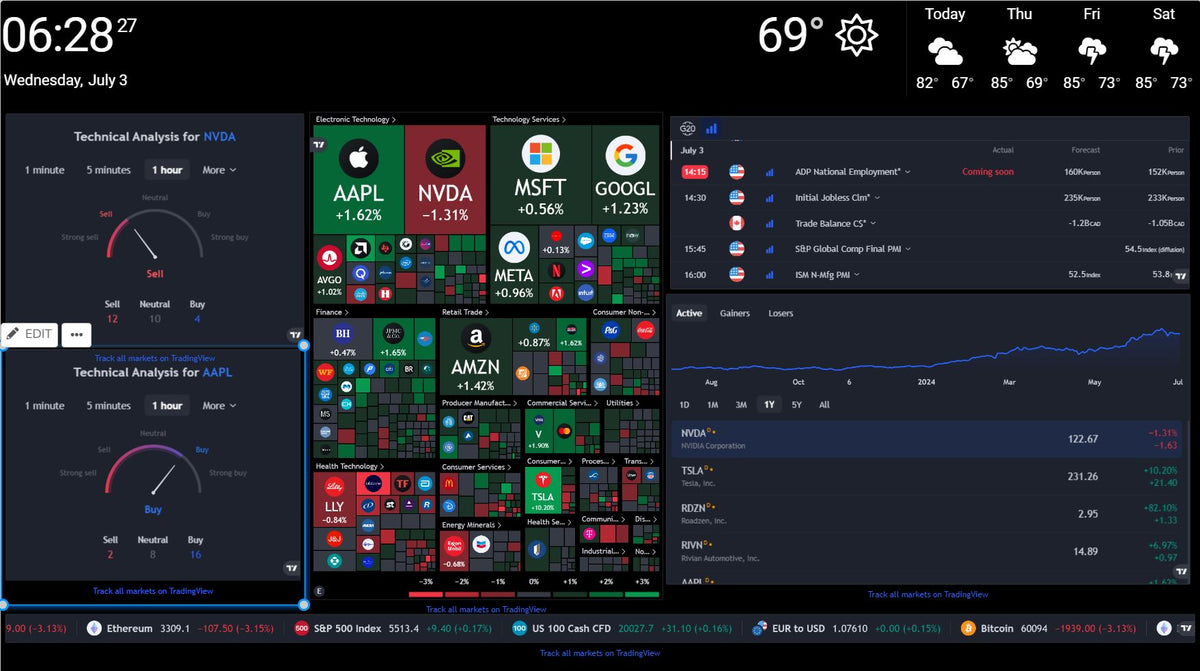
For volatility, script “Volatility Breakout” watches Bollinger Band squeezes pre-ECB announcements. Free users get 20 alerts; Pro+ expands to 400 with multi-condition logic.
Traders report 30% fewer missed moves using these during Asian sessions.
To configure for Forex events,
- Link alerts to economic calendar releases under “Events” filter.
- Use webhook URLs for broker auto-trades on volatility thresholds.
- Test with historical data to fine-tune sensitivity avoiding false positives.
What is the Role of TradingView’s Economic Calendar in Forex Trading?
TradingView’s Economic Calendar forecasts Forex news impact with color-coded volatility levels (low/medium/high) for events like US Non-Farm Payrolls, directly overlayable on charts. It lists expected vs. actual figures, helping predict moves on pairs like USD/JPY.

This integration beats standalone calendars by syncing timestamps to your broker’s timezone, with filters for currencies. Impact ratings guide risk management, e.g., avoiding trades 30 minutes pre-high-impact data.
Forex pairs shift 50-100 pips post-key releases, per historical charts.
You’ll find it under “Calendar” tab for daily planning.
To leverage it fully,
- Set personal filters for Fed speeches or GDP data.
- Overlay events on multi-pair watchlists for correlation spotting.
- Combine with volume indicators for confirmation trades.
How Does TradingView’s Social Community Benefit Forex Traders?
TradingView’s social features let Forex traders share ideas in dedicated streams, follow top authors like “TheForexScalper,” and join Forex-specific groups for live USD/CHF analysis. Publish charts with scripts, gaining feedback that refines strategies.

Over 50 million users post 1,000+ daily Forex ideas, with leaderboards ranking by likes. Groups like “Forex Signals” host 100k members debating Brexit effects.
This network boosts win rates through crowd-sourced patterns, as seen in viral EUR/USD reversal calls.
Does real-time discussion change your trades? Many say yes.
For maximum benefit,
- Publish your setups with risk ratios to attract followers.
- Engage in chat rooms during overlaps like NY-London.
- Use “Ideas” stream filters for “Forex” + “Support/Resistance.”
Is TradingView Suitable for Scalping Forex Strategies?
TradingView suits scalping analysis with sub-minute charts and low-latency replays, but execution relies on broker links for true low-latency trades on pairs like EUR/USD. Scripts like “1-Min Scalper” with Heikin Ashi provide entries during 1-pip spreads.

Tick data feeds ensure precision, though pure scalpers pair it with cTrader for faster fills. Tests show 0.1-second chart updates, viable for 5-minute holds.
Rhetorically, can analysis alone scalp? No, but TradingView dominates pre-execution.
To adapt for scalping,
- Enable “Tick” charts and DOM for order flow.
- Connect low-spread brokers like IC Markets for sub-0.5 pip execution.
- Limit to liquid sessions, avoiding news for clean scalps.