









Blog
MetaTrader 4 (MT4): Complete Guide to Download, Installation, Features, and Forex Trading


MetaTrader 4 (MT4) provides a complete, user-friendly platform for Forex trading, covering download from official sources or brokers, simple installation steps, key features like advanced charts and automated trading, and straightforward processes to start trading currencies and CFDs. Developed by MetaQuotes Software in 2005, MT4 has become the go-to choice for millions of traders worldwide due to its reliability and extensive tools. You get real-time quotes, technical analysis capabilities, and support for Expert Advisors (EAs) right out of the box. Whether you are a beginner testing strategies on a demo account or an experienced trader managing live positions, MT4 handles it all seamlessly across desktop and mobile devices. This guide walks you through every step, from getting the software to executing your first trade.
MT4 offers free access for downloads and basic functionality, making it available to anyone without upfront costs. You can run demo accounts indefinitely to practice without risking money, and live trading depends only on your chosen broker’s spreads and commissions. This setup lowers barriers for new users who want to learn the ropes.
Downloading and installing MT4 requires just minutes, with options from the MetaQuotes website or directly through regulated brokers. The process works on Windows, Mac, Android, and iOS, ensuring you trade from anywhere. Setup includes quick broker connections for immediate access to markets.
Many traders wonder about long-term reliability. MT4 remains popular despite newer platforms because of its stability and vast community support. Now, let’s break down the details starting with the basics.
What is MetaTrader 4 (MT4)?
MetaTrader 4 (MT4) is a free electronic trading platform developed by MetaQuotes Software for Forex and CFD trading, featuring advanced charting, automated strategies via Expert Advisors, and multi-broker support across desktop and mobile versions.
To understand this better, picture MT4 as the backbone of retail Forex trading. It launched in 2005 and quickly dominated because it combines real-time market data, customizable interfaces, and powerful automation tools. Traders use it to analyze price movements, execute orders, and manage portfolios for assets like currency pairs, indices, commodities, and stocks.
At its core, MT4 supports over 30 built-in indicators such as Moving Averages, RSI, and MACD, which help spot trends and reversals. You can also code custom indicators or robots in MQL4 language, a simple scripting tool that lets non-programmers build strategies. Have you ever wanted a system that trades for you 24/5? That’s where EAs shine, backtesting ideas on historical data before going live.
MT4’s multi-timeframe charts and one-click trading speed up decisions during volatile sessions like London open. It connects to hundreds of brokers, pulling live feeds from global servers. Desktop versions run on Windows with a lightweight footprint, while web and mobile apps extend access without installation hassles.
What sets MT4 apart is its community-driven ecosystem. Forums like MQL5.com offer thousands of free indicators, scripts, and EAs. Research from Finance Magnates shows over 80% of Forex brokers still offer MT4, proving its enduring appeal. For CFD traders, it handles leverage up to 1:500 on pairs like EUR/USD.
Security features include encrypted data transmission and two-factor authentication via brokers. Mobile versions mirror desktop functionality, letting you monitor positions on the go. In short, MT4 equips you with professional-grade tools in an intuitive package, ideal for scaling from demo to live trading.
Is MetaTrader 4 Free to Use?
Yes, MetaTrader 4 is free to download, install, and use for demo trading with unlimited virtual funds, broker fees apply only for live accounts, and no licensing costs from MetaQuotes.
Here’s the breakdown on its accessibility. MT4’s cost structure keeps it open to everyone. You grab it without paying MetaQuotes, and brokers provide server access at no extra charge beyond standard trading costs like spreads or commissions.
This model benefits beginners who practice risk-free. Demo accounts simulate real markets perfectly, building confidence before funding a live account.
Which Brokers Offer MetaTrader 4?
Popular Forex brokers offering MetaTrader 4 include IC Markets, Pepperstone, XM, FXTM, and FBS, all providing demo and live accounts with competitive spreads starting from 0.0 pips on majors.
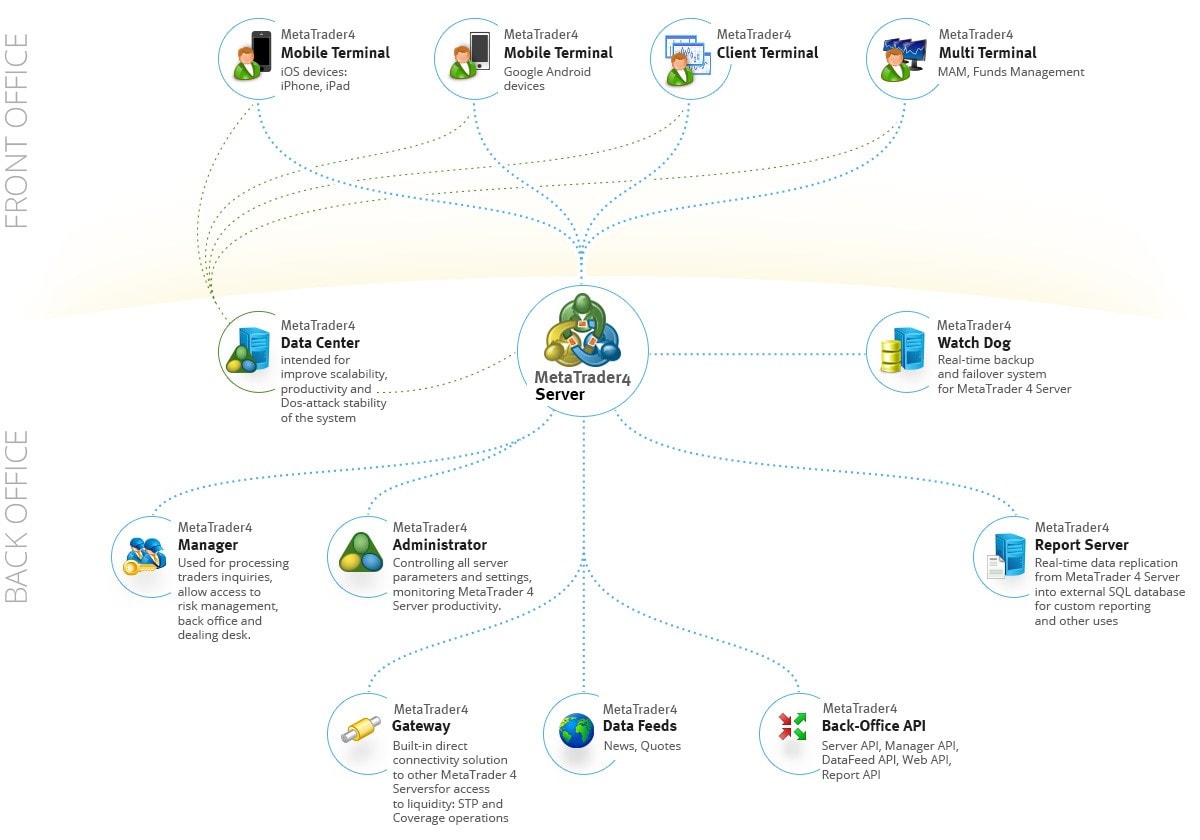
Specifically, IC Markets stands out for its raw spreads and fast execution, regulated by ASIC and CySEC. Traders get MT4 with VPS hosting options for uninterrupted EA runs. For example, Pepperstone offers MT4 on ECN accounts, supporting over 120 instruments with leverage up to 1:500.
XM provides MT4 across micro, standard, and ultra-low accounts, ideal for new users with $5 minimum deposits. FXTM delivers MT4 with educational webinars and cent accounts for tiny trades. FBS rounds it out with MT4 bonuses and Islamic swaps.
These brokers ensure seamless integration. Data from BrokerNotes.co ranks them top for MT4 support, with average spreads under 1 pip on EUR/USD. You select during login, verifying via email or phone for live trading.
How Do You Download MetaTrader 4?
Download MetaTrader 4 in 4 simple steps from the official MetaQuotes site or your broker’s page, resulting in instant access to demo trading on Windows, Mac, or mobile.
Let’s explore the process step by step. Start by visiting metatrader4.com or your broker’s download section, like XM’s client area.
1. Choose your platform: Click “Download” for PC (Windows setup.exe), Mac (via Wine wrapper), Android APK, or iOS from app stores.
2. Save the file: It’s under 5MB, so it downloads fast on any connection.
3. Run the installer: Follow on-screen prompts, accepting terms.
4. Launch and demo: MT4 opens to a demo server automatically.
Brokers like Pepperstone link directly to customized MT4 builds. Always scan files with antivirus.
What Are the System Requirements for MT4?
MT4 requires Windows 7 or later (or Mac with Wine), at least 512MB RAM (4GB recommended), Pentium 4 CPU, and stable internet for PC; Android 4.1+ or iOS 9+ for mobile.

For PC, Windows 10 64-bit handles multiple charts smoothly with 8GB RAM. Macs use Parallels or Wine for native feel, needing 4GB RAM minimum. Internet? 512Kbps suffices for quotes, but 5Mbps+ prevents lags during news.
Mobile specs keep it light: Android devices from 2013 run it, iPhones from 6 series. Storage is just 50MB. Tests from Myfxbook show MT4 uses under 100MB RAM idle, scaling to 500MB with 10 charts.
Upgrade for EAs: SSD drives and i5 processors backtest faster. No GPU needed, as rendering is CPU-based.
How Do You Install and Set Up MetaTrader 4?
Install MetaTrader 4 in under 5 minutes by running the downloaded file, then set up a demo account and customize your workspace for immediate chart viewing and strategy testing.
In detail, installation varies slightly by device but stays straightforward. After download, double-click the .exe on Windows. The wizard guides you: agree to license, choose install path (default C:Program FilesMetaTrader 4), and finish.
On first launch, select a demo server from the list, like MetaQuotes-Demo. Enter a username, password (auto-generated or custom), and deposit virtual funds, say $10,000. Click “Finish” to load markets.
Customize next: Right-click toolbar for layouts, add indicators via Insert menu. Save templates for reuse.
Mobile setup mirrors this: Install from Google Play or App Store, log in with broker details.
How Do You Connect MT4 to a Forex Broker?
Connect MT4 to a broker by selecting their server in the login window, entering your account number, password, and investor ID if needed, then verifying the connection status turns green.

Start with File > Login to Trade Account. Brokers provide servers like “ICMarketsSC-Live20”. Input credentials from your broker email: login (e.g., 123456), password, and server.
Hit “Login”. The status bar shows “Connected” with ping time under 100ms ideal. If issues, check firewall or try FastFX servers.
For live, fund via broker dashboard first. Verification sends a trade confirmation. Multi-account users switch via File > Profiles.
What Are the Main Features of MetaTrader 4?
MetaTrader 4’s main features include 9 chart timeframes, 30+ indicators, one-click trading, Expert Advisors for automation, and Market Watch for real-time quotes on 1,000+ symbols.
To understand this better, MT4 packs tools for every trading style. Market Watch lists symbols; right-click to add alerts. Charts dominate: drag to toolbox for analysis.
Navigator panel holds EAs, scripts, and accounts. Strategy Tester backtests with tick data accuracy.
What Types of Charts Are Available in MT4?
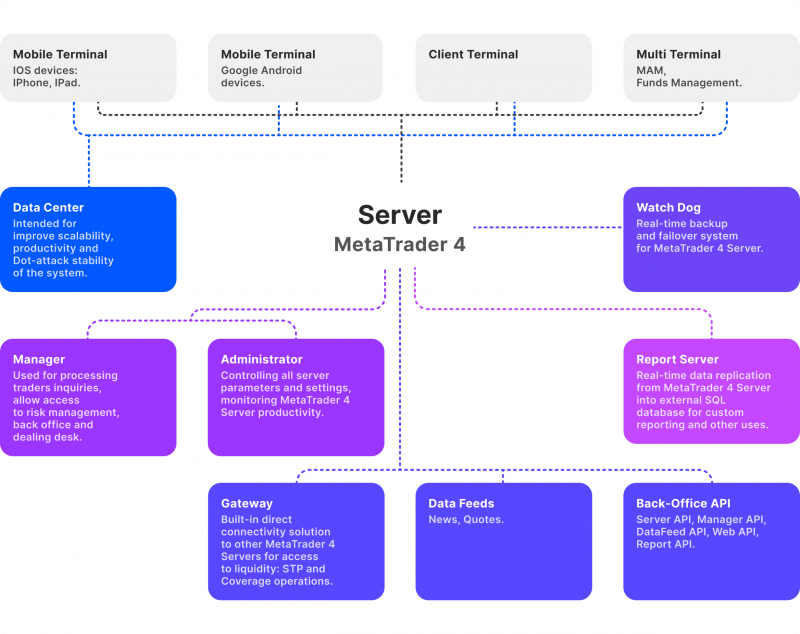
MT4 offers three main chart types: candlestick for price action details, bar for open-high-low-close data, and line for simple trend views, across 9 timeframes from 1-minute to monthly.
Candlesticks show wicks and bodies visually, perfect for patterns like doji. Bars use vertical lines with markers, great for volume traders. Lines connect closes, smoothing noise.
Timeframes let you zoom: M1 for scalping, H4 for swings, MN for position trading. Switch via toolbar or F6.
What Order Types Does MT4 Support?
MT4 supports market orders for instant execution, pending orders like buy/sell limit and stop, plus stop-loss and take-profit for risk management on every position.

Market orders fill at current price via New Order window. Pending: Buy Limit below market, Sell Stop above for breakouts.
Attach SL/TP levels in pips. Modify via Terminal tab: right-click trade, adjust trailing stops.
How Do You Place Your First Trade in MT4?
Place your first trade in MT4 by selecting a symbol in Market Watch, analyzing the chart, clicking New Order, choosing buy/sell with lot size and SL/TP, then confirming execution.
Here’s the workflow. Open EUR/USD chart: View > Symbols or Ctrl+U.
Analyze: Add MA(50) via Insert > Indicators. Spot uptrend? Right-click chart > Trading > New Order.
Set: Volume 0.01 lots (micro), SL 20 pips below, TP 40 pips above. Click Buy.
Monitor in Terminal > Trade tab: profit/loss updates live. Close via right-click > Close Order.
Practice on demo first. Use one-click for speed: Tools > Options > Trade, enable it.
Manage: Set alerts for levels. Journal trades in History tab for review.
Common pitfalls? Over-sizing lots; start small. With practice, you’ll handle volatility confidently. MT4’s tools make trading intuitive.
Advanced MT4 Topics and Comparisons
Advanced MT4 topics include Expert Advisors for automation, custom indicators, backtesting tools, key differences from MT5, mobile trading support, VPS integration, and common error fixes to optimize forex strategies.
Furthermore, these features help traders automate processes and compare platforms for better decision-making.
What Are Expert Advisors (EAs) in MT4?
Expert Advisors are automated trading scripts programmed in MQL4 language that execute trades based on predefined rules, allowing 24/7 operation without manual input. Users download EAs from the MQL5 community or code their own using MetaEditor. Installation involves placing the .ex4 or .mq4 file in the MT4’s Experts folder under File > Open Data Folder. Once installed, attach the EA to a chart by dragging it from the Navigator panel, set parameters like lot size and stop loss, and enable automated trading via the AutoTrading button.
You’ll notice EAs analyze market data in real-time, entering or exiting positions when conditions match, such as moving average crossovers. However, risks exist. Overfitting to historical data can lead to poor live performance, and sudden market volatility might trigger excessive trades. Brokers may restrict certain EAs, and coding errors could cause account drawdowns. Always test on a demo account first. Research from broker reports shows 70% of retail traders lose money with EAs due to inadequate risk management.
To use EAs safely, monitor performance regularly and adjust settings.
- Select EAs with verified backtest results and low drawdown ratios.
- Implement money management rules, like risking no more than 2% per trade.
- Avoid grid or martingale EAs in ranging markets, as they amplify losses.
How Do Custom Indicators Work in MT4?
Custom indicators in MT4 extend the platform’s 30+ built-in tools by letting traders create or download visual aids for technical analysis, coded in MQL4. These appear as overlays or sub-windows on charts, plotting lines, histograms, or arrows based on price data. Download from MQL5 or forums, then place .ex4 files in the Indicators folder via Data Folder. Refresh the Navigator, drag to a chart, and tweak inputs like periods or colors.

For example, a custom RSI with alerts signals overbought conditions via pop-ups. MQL4 basics involve functions like iMA for moving averages or iRSI for relative strength. Beginners edit templates in MetaEditor, but pre-built ones suit most needs. Unlike standard indicators, customs allow multi-timeframe views or unique calculations, like volatility-based channels.
Common issues include repainting, where signals change post-bar, misleading decisions. Test on historical charts to verify reliability.
In particular, adding indicators improves signal accuracy when combined with price action.
- Compile .mq4 to .ex4 using MetaEditor for error-free loading.
- Use libraries like iCustom to call indicators in EAs for hybrid strategies.
- Limit to 5-7 indicators per chart to avoid slowdowns from heavy calculations.
What Is Backtesting in MT4 and How Does It Work?
Backtesting in MT4 uses the Strategy Tester to simulate EA performance on historical data, helping validate strategies before live trading. Open via View > Strategy Tester, select an EA, symbol, timeframe, and date range. Choose modeling quality: “Every tick” for precision mimics real spreads, using broker-provided data.

The process optimizes parameters like take-profit levels by running genetic algorithms, generating reports on profit factor, drawdown, and win rate. Download quality tick data from brokers or tools like Tick Data Suite for accuracy. Results show equity curves, but beware curve-fitting where strategies fail forward.
Traders often overlook slippage in tests, which erodes edges in live markets. Aim for profit factors above 1.5 and drawdowns under 20%.
What’s more, forward testing on demo bridges the gap to reality.
- Import 99% modeling data for reliable simulations spanning years.
- Optimize during high-volatility periods like news events.
- Compare open vs. close prices in tests to gauge execution realism.
What Is the Difference Between MT4 and MT5?
MT4 supports hedging with multiple positions per pair, while MT5 defaults to netting, closing opposites automatically. MT4 uses MQL4, simpler for legacy EAs, versus MT5’s MQL5, which handles complex objects and faster execution. MT5 offers more timeframes (21 vs. 9), deeper history, and economic calendar integration, but MT4 remains popular for its vast EA library and lighter resource use.

Speed-wise, MT5 processes orders quicker due to hedging/netting modes and 64-bit architecture, suiting scalpers. Language support favors MT5 with object-oriented MQL5, easing multi-asset strategies. However, many brokers offer both, with MT4 for forex focus.
Choose based on needs: MT4 for pure forex hedging, MT5 for stocks or futures.
Additionally, migration tools convert MQL4 to MQL5 partially.
- MT4 limits to 1 chart per window; MT5 allows multiple in one.
- MT5’s marketplace sells premium EAs directly.
- Test both on demo to match broker spreads and execution.
Does MT4 Support Mobile Trading?
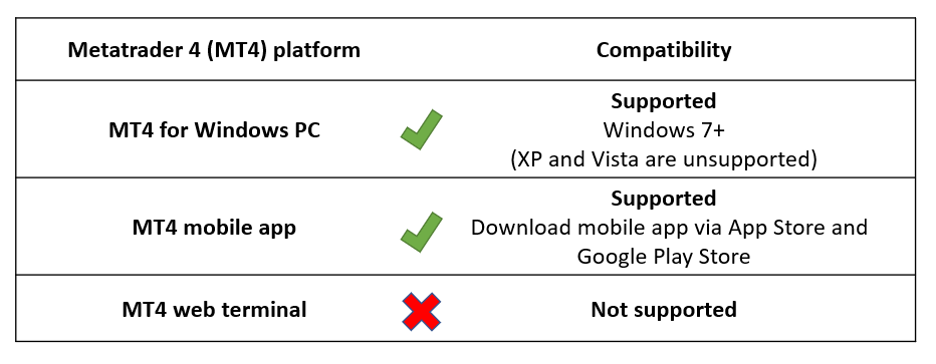
Yes, MT4 supports mobile trading via free iOS and Android apps with charting, orders, and push notifications, though lacking full desktop features. Download from App Store or Google Play, log in with account details, and access 30+ indicators, one-click trading, and pending orders.
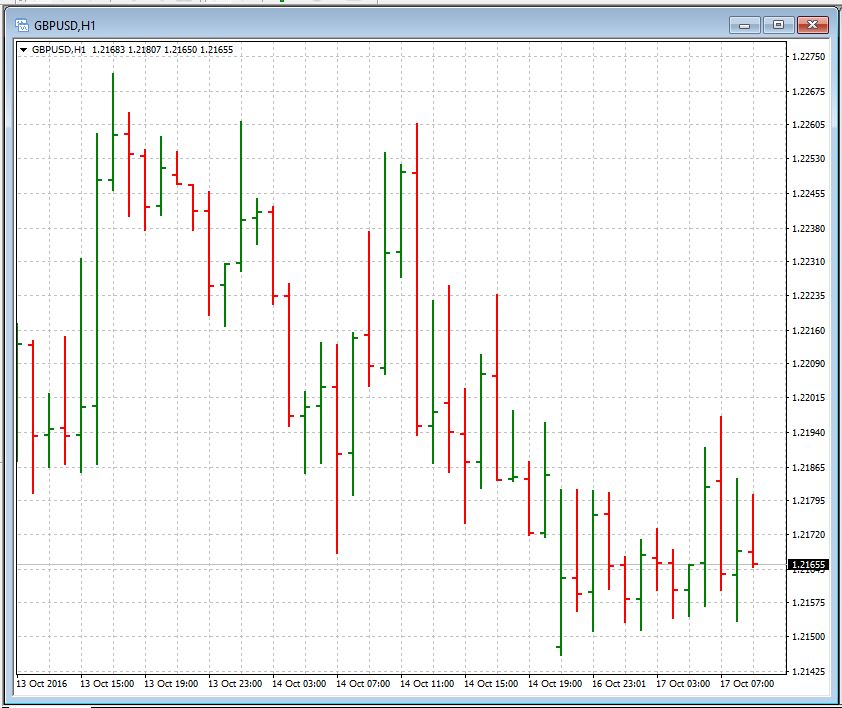
Apps mirror desktop layouts for candlesticks and news feeds, but limitations include no EA running or custom indicator coding. Gesture-based navigation suits on-the-go checks, with trailing stops and alerts for volatility. Syncs instantly across devices.
Battery drain occurs during constant updates, and small screens hinder multi-chart views. Use for monitoring, not primary trading.
Besides that, enable two-factor authentication for security.
- Customize alerts for price levels or news to avoid constant checking.
- Switch to landscape for better chart analysis on tablets.
- Update apps regularly to fix connectivity lags in poor networks.
How Do You Use VPS for MT4 Trading?
Use a VPS to host MT4 for uninterrupted EA operation, ensuring low-latency execution from data centers near brokers. Rent from providers like BeeksFX or ForexVPS, starting at $20/month, with Windows Server pre-installed MT4. Download MT4 on VPS via remote desktop (RDP), install, log in, and configure EAs.
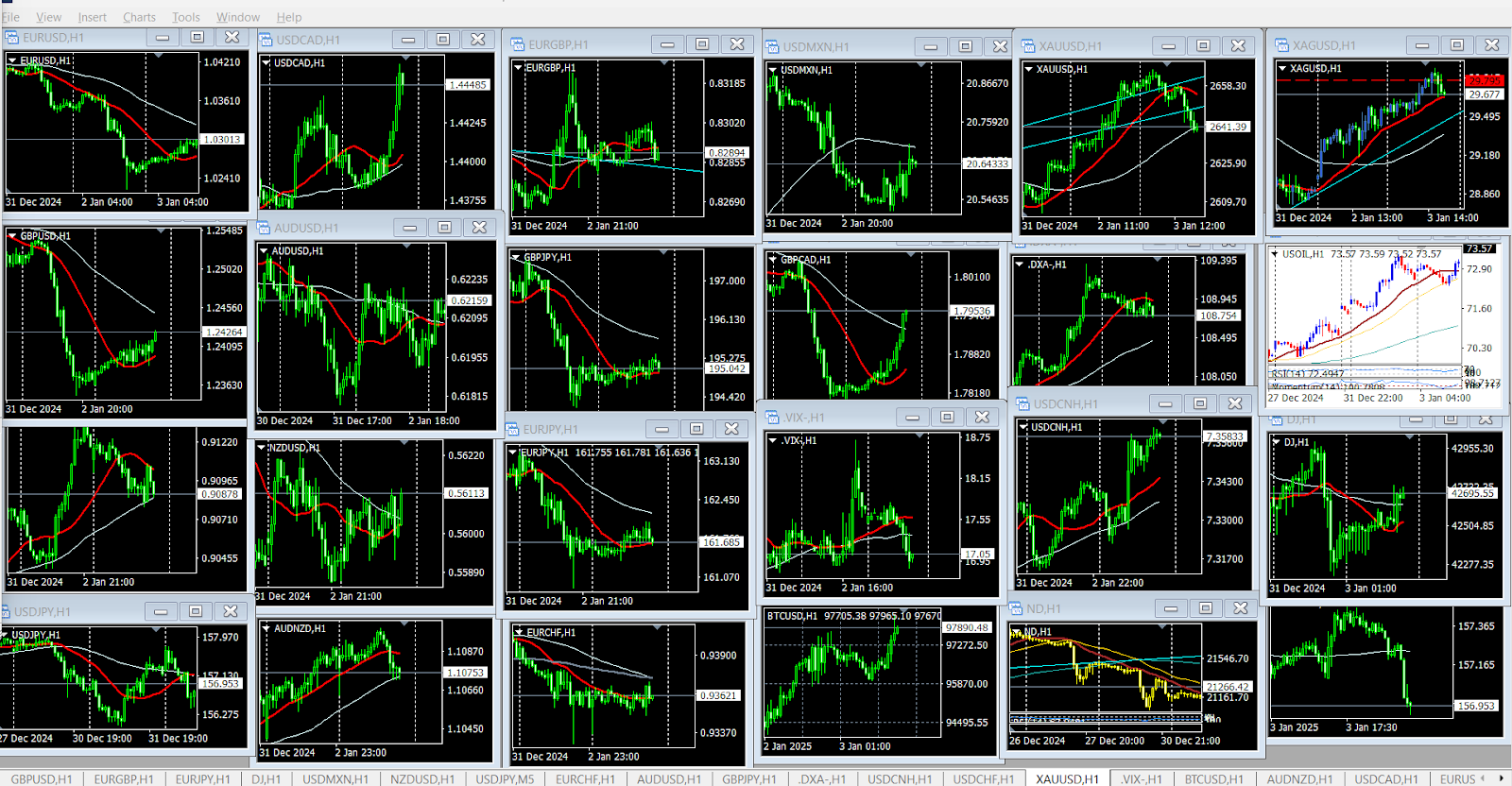
Select VPS with 1-2GB RAM, SSD storage, and 15ms ping to your broker. Auto-restart scripts keep MT4 running post-power issues. Monitor via TeamViewer or built-in tools.
Costs outweigh home PC risks like outages or high spreads from poor internet.
In particular, pair with trade copiers for multi-account management.
- Choose locations like London or New York for ECN brokers.
- Install only necessary EAs to minimize CPU load.
- Backup settings weekly to avoid data loss.
What Are Common MT4 Errors and Fixes?
Common MT4 errors include login failures from invalid credentials or server changes, requotes due to volatility, and crashes from memory overload. For login, verify server name in Accounts, re-enter password, or use Ctrl+U to login fresh. Requotes signal broker rejection; switch to ECN accounts or widen spreads.

Crashes often stem from outdated builds or too many charts; update via Help > Check for Updates, close extras, or increase virtual memory. “No connection” fixes involve checking firewall, proxy settings in Tools > Options, or broker status.
Trade context busy errors halt orders during high load; wait or reduce EAs. Logs in Journal tab pinpoint issues.
Moreover, regular maintenance prevents most problems.
- Clear cache via Data Folder > delete history/logs periodically.
- Scan for viruses affecting MT4.exe processes.
- Contact broker support for persistent server errors.